
 LT
LT
 DE
DE
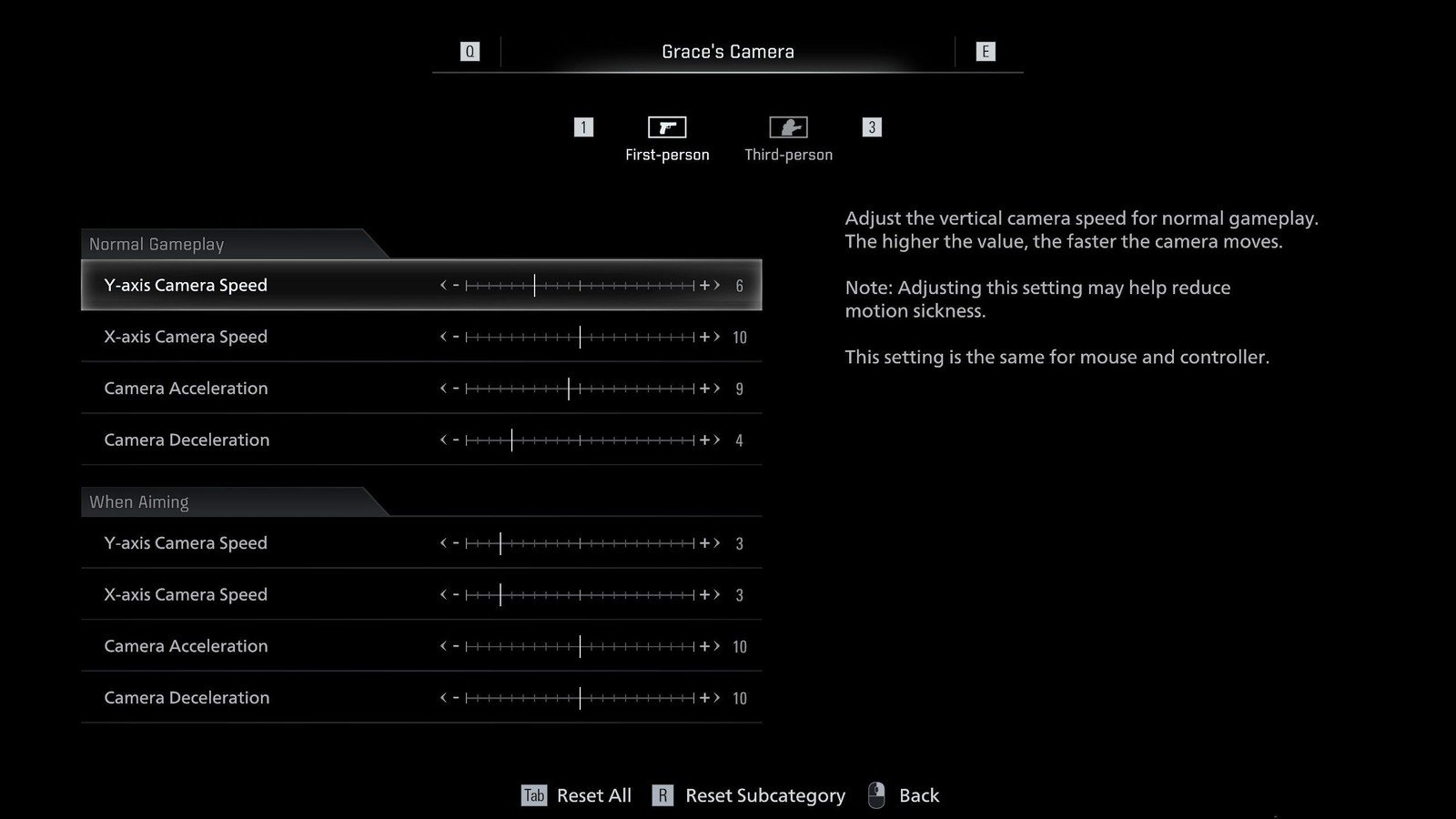
“Resident Evil Requiem mouse sensitivity settings” have become an unexpected mini-sensation among PC players in recent days after it emerged that the sensitivity can be adjusted—but the setting itself is not located where you would instinctively look for it. This is not a “game without settings,” but the user interface logic can mislead even experienced players.
The news spread as a simple PSA-style reminder: if the mouse feels “too slow,” “too fast,” or simply uncontrollable, a solution most likely exists—you just need to know where to look. On PC, mouse feel is one of the most important details, especially in a horror game where panic and precision often meet within the same frame.
The most interesting part is that these “hidden” control options can create a false impression of the game itself: some players assume that the developers only included controller-oriented controls, while others think they simply have to adapt to “the way it is.” In practice, it usually takes only a few minutes to make the mouse controls feel natural.
Resident Evil Requiem mouse sensitivity settings: why everyone is talking about them

PC Gamer highlighted a simple but highly relevant detail: mouse sensitivity adjustment exists in the game, but it is not clearly placed in the typical “Controls” or “Mouse” menu, as is customary in many shooters and third-person games. As a result, some players do not even notice that the setting exists and begin looking for workarounds: changing their DPI, adjusting Windows sliders, or even considering mods.
Why does this matter? Because mouse feel is not just a “Sensitivity” number. It also involves the camera, aiming, acceleration, and parameters similar to a dead zone, which can manifest with a mouse as input delay, imprecise micro-movements, or an overly “floaty” camera. In horror games, where you often need to turn quickly, aim briefly, and regain control of the situation, this can determine whether a scene feels tense or simply frustrating.
Another factor is that different players have different habits. Some play at 400–800 DPI with a large mouse pad, while others use 1600–3200 DPI and shorter movements. If the game is designed to feel too fast or too slow by default, the lack of an obvious setting can result in a poor first impression. And first impressions, especially on social media, spread faster than any patch notes.
Where to look: how to logically find mouse sensitivity when the menu is confusing
Although the exact menu structure may differ depending on the version, platform, or updates, the basic idea is simple: if you cannot find “Mouse Sensitivity” where you expect it, look wherever the developers grouped camera and aiming behavior rather than the mouse itself as a device. In other words, search by function rather than by input device.
A practical search method: (1) open “Options/Settings” and review every section with “Camera,” “Aiming,” “Gameplay,” “Accessibility,” or “Input” in its name; (2) look for words related to “look,” “turn,” “aim,” or “view”; (3) check whether there are separate sliders for the horizontal and vertical axes; (4) see whether there are separate sensitivity settings for “aiming” mode, when you aim or raise your weapon, and “camera” mode, when you are simply looking around.
If the setting is hidden somewhere unusual, it usually means that the developers associate it with the camera rather than the “mouse” device. In such cases, the slider may appear alongside other camera-related options, including camera shake, Y-axis inversion, FOV, or even aim assist. This may seem illogical, but it explains why some players simply scrolled past it.
It is also worth checking an “Advanced” or “Other” submenu if one exists. Games sometimes place “minor” options there that most players are not expected to change, even though they become essential for the PC audience. That is precisely why this PSA gained traction: people realized that a solution existed, but finding it required some patience.
Resident Evil Requiem mouse sensitivity settings and “why does my mouse still feel strange?”
Even after finding the sensitivity slider, some players may still feel that “something” is not quite right. This is normal because several layers shape mouse feel in a PC environment. If you want a quick diagnostic checklist, start with three main factors: DPI, operating system settings, and in-game acceleration.
First, DPI, or the resolution of the mouse sensor. If you are accustomed to a specific DPI in other games, do not change it for every new title. It is more convenient to use one consistent DPI, such as 800 or 1600, and adjust the in-game sensitivity instead. Second, check the Windows mouse settings. If “Enhance pointer precision” is enabled, it can produce an inconsistent feel in some games, especially if the game does not use raw input or applies its own filtering. Third, acceleration or filtering may be enabled within the game, making movement feel more “cinematic” but less precise.
Another common detail is separate aiming sensitivity. Third-person horror games often have two modes: free camera movement and “aim” mode, when you raise your weapon. If you adjust one while leaving the other at its default value, the game will feel inconsistent. It is therefore worth checking whether there are two sliders and adjusting both to match your preferences.
Finally, consider FOV and camera distance. Although FOV is primarily associated with the visual presentation, it changes how movement is perceived: a wider FOV can make the camera appear to turn more slowly, even if the actual angular speed remains the same. If the PC version of Resident Evil Requiem offers FOV adjustment, make sure you tune the sensitivity for your chosen FOV rather than the other way around.
How to calibrate it in practice: a quick method without math
If you do not want to calculate “cm/360” or dive into sensitivity conversions between different games, there is a simple but effective method that works for most players. The goal is to find a sensitivity that allows you to (a) make precise small adjustments and (b) turn around quickly when necessary.
1) Choose a baseline: use a consistent DPI and disable unnecessary operating system acceleration if it interferes with your habits. 2) Set the in-game sensitivity so that a moderate mouse movement across the width of your mouse pad allows you to turn approximately 180°–360°, depending on your playstyle. 3) Then test micro-movements: can you slowly “lock” the crosshair onto a small object, such as a detail on a wall, without overshooting? 4) If micro-movements feel too coarse, lower the sensitivity; if turning feels too slow, increase it—but only in small increments.
This method works well because it does not require finding a perfect number—it is tailored to actual gameplay. In the horror genre, pinpoint headshot accuracy is not the only important factor; camera comfort also matters. You need to be able to scan your surroundings quickly without swinging past your target when the situation suddenly changes.
If the Resident Evil Requiem mouse sensitivity settings allow you to adjust the horizontal and vertical axes separately, many players may find it more comfortable to keep the vertical axis slightly slower. This makes it easier to maintain a stable sense of the horizon and reduces the likelihood of tilting the camera too far when you nervously jerk the mouse. However, this is a matter of personal preference—the most important thing is for movement along both axes to remain predictable.
Why developers sometimes “hide” settings like these
From the outside, it may seem strange that a sensitivity slider in a PC game is not placed in the most obvious location. However, this is often related to how games are developed for multiple platforms at the same time. If the basic interface logic is primarily designed around a controller, while PC options are added later or grouped under “camera” settings, compromises can emerge that seem illogical specifically to PC players.
There is also a “fewer options, fewer mistakes” design philosophy: some developers try to avoid displaying too many sliders in one place to prevent the menu from becoming cluttered. The problem is that mouse sensitivity is not a cosmetic option—it is a fundamental control element. Therefore, even if the slider technically exists, finding it becomes a UX problem, and UX problems quickly become social media topics today.
The community’s role is also important in this story. These PSA posts effectively serve as rapid support: before official guides appear and while players are still unfamiliar with the game’s menus, a single observation can save hundreds of people time. This is especially relevant for new or newly released projects, where even minor details can significantly affect review scores.
What to do if you cannot find the setting or it does not work as expected
If you have searched through the menus and still cannot find the sensitivity option, it is worth checking several things that often explain the situation. First, make sure the game actually recognizes the mouse as the active input device. Sometimes menus adapt to the last device used, whether that is a controller or a keyboard and mouse. Try moving the mouse in the menu or during gameplay and see whether the displayed control prompts change.
Second, check whether there are separate profiles or preset-style control schemes. In some games, mouse settings are linked to a specific profile, and changes do not take effect until you confirm them or exit the menu. Third, if the game has a “reset to default” button, it may sometimes help when a previous setting conflicts with a new update.
Fourth, pay attention to the frame rate and frame pacing. If the game runs inconsistently and suffers from micro-stuttering, mouse movement can feel uneven even when the sensitivity is correctly configured. In this case, the problem is not the slider but performance: it may be worth lowering the graphics settings, enabling a stable frame rate cap, or checking whether potentially incompatible technologies are active, such as certain overlay applications.
What to expect from updates: will this detail be “fixed”?
When a minor but widely discussed UX problem like this emerges, there are usually two possible outcomes. The first is that the developers leave everything as it is because “the setting does exist,” and the community adapts. The second is that the menu logic is revised and the sensitivity option is moved to a more obvious location or at least duplicated across several menus to make it easier to find.
Clearer terminology would also benefit the PC audience. If the slider is called “Camera turn speed” rather than “Mouse sensitivity,” for example, some people will not associate it with the mouse. The same applies to the distinction between “camera” and “aim”: when players do not know there are two modes, they adjust one and become frustrated with the other. Even small naming changes could therefore greatly improve the experience without adding any new features.
For now, the takeaway is clear: a solution exists, but it is not obvious to everyone. If your first impression was poor solely because of the controls, it is worth checking the settings again—this is often the fastest way to “unlock” a satisfying gameplay feel.