
 LT
LT
 DE
DE
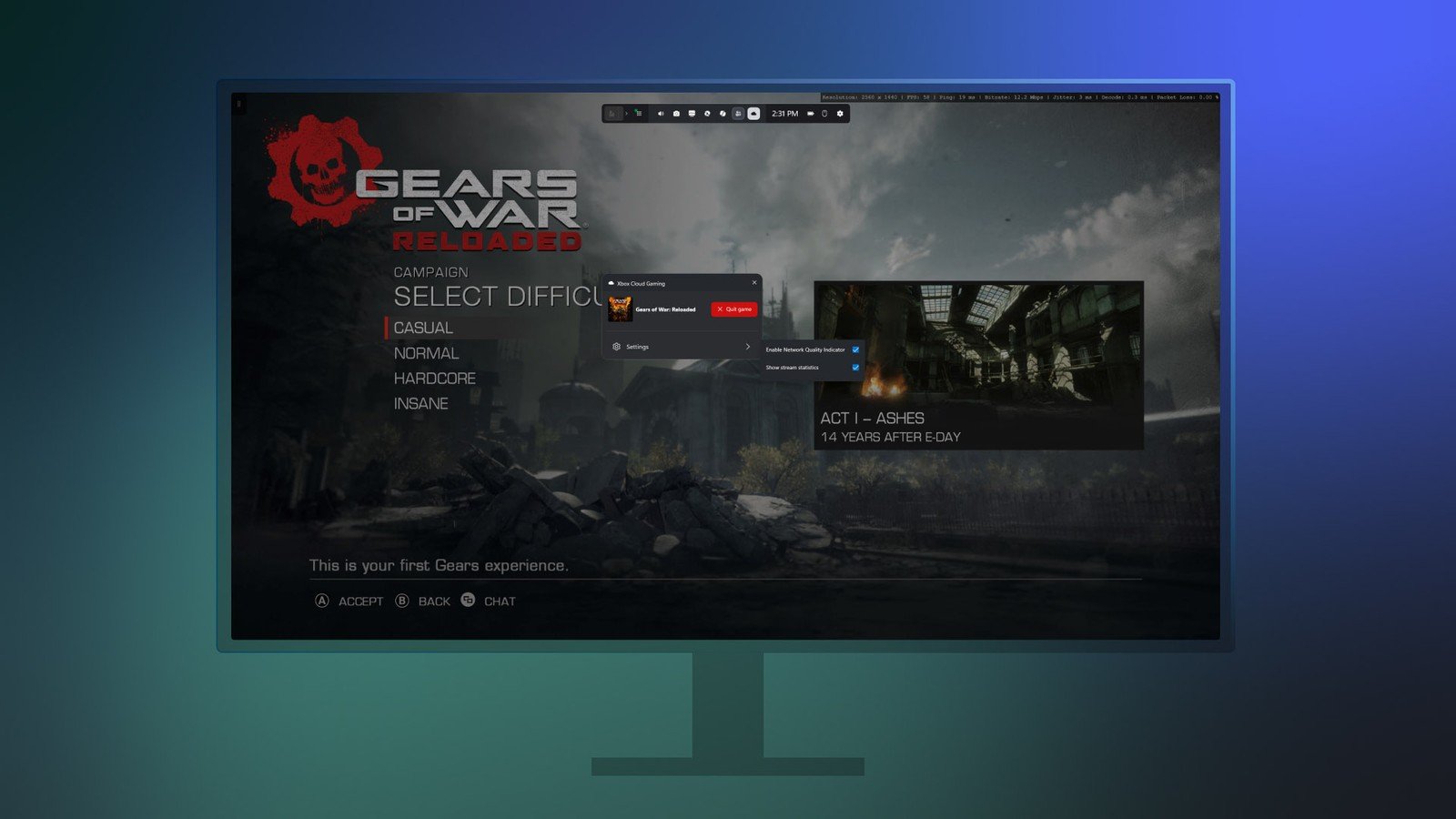
If you are looking for how to enable 1440p streaming on Xbox, the February Xbox system update is exactly the kind of news that could genuinely change your everyday experience: streamed visuals on consoles can become sharper, more detailed, and more enjoyable when playing on a larger screen or a 1440p monitor.
Until now, many streaming scenarios—especially when the game is not running on your device but is being streamed—were often limited to 1080p or more aggressive compression. 1440p is an intermediate but highly practical step: noticeably more detail than 1080p, while often requiring less bandwidth and connection stability than 4K.
It is also important that this change arrives as an official evolution of the platform: when a feature is supported at the system level, it is easier to integrate, problems are easier to diagnose, and users have to do less guessing about why the image looks great one day and somewhat “soft” the next.
How to Enable 1440p Streaming on Xbox: What the New Update Changes
The main message is simple: the February Xbox update expands streaming image quality to 1440p (QHD) on Xbox consoles, provided your equipment and connection support it. In practice, this can mean clearer small text in menus, less visible aliasing around high-contrast edges, and better-preserved detail during fast movement when the image must be compressed and transmitted over the internet.
Although resolution itself may sound like a dry number, it has a very specific effect when streaming: more pixels give the codec more room to reproduce detail, and if the bitrate is high enough, the image looks less like compressed video and comes closer to the feeling of local rendering.
However, it is worth remembering that streaming is not the same as the resolution at which the game runs on your console. Even if the game runs locally at 4K, the streamed feed may have a different goal: achieving a stable balance between quality, latency, and connection fluctuations. 1440p is often considered the sweet spot, especially when playing on monitors with a native 1440p resolution.
What 1440p Streaming Means on Consoles: A Quality Boost Without the 4K “Cost”
1440p (2560×1440) is a popular resolution in the PC gaming world, but it is also becoming increasingly established in the console ecosystem. Why? Because in reality, many people do not play on a perfectly calibrated 4K TV, but on a 27–32-inch monitor where 1440p looks sharper than 1080p and often does not require the same compromises as 4K.
In streaming scenarios, there are usually three compromises: image quality, latency, and stability. The higher the resolution, the more data is required, so on a weaker network it is easier to notice artifacts: blockiness in dark areas, reduced sharpness during movement, or brief drops in quality as the system adjusts to the connection. 1440p may be exactly the point where quality clearly improves while the system still has enough breathing room to adapt to a real-world home internet connection.
Another practical detail is that text and the UI are the most sensitive areas for many gamers. If you play strategy games, RPGs, or anything with lots of menus and small text, the higher streaming resolution may be immediately noticeable—even without pausing the game to “look at the grass.”
How to Enable 1440p Streaming on Xbox – Steps and Settings
Below is a practical guide to preparing your setup so that 1440p streaming has a chance to activate and remain stable. The exact menu names may differ slightly depending on the system language or update iteration, but the general logic is similar everywhere.
1) Update your console to the latest version. Go to Settings and check for system updates. Because features are often enabled gradually, it is important to have the latest version of the Xbox OS and restart the console after updating.
2) Check display support and the console’s output settings. If you play on a monitor, make sure it genuinely supports 1440p through the connection you are using (HDMI, DisplayPort via adapters, and so on). In the Xbox settings, it is worth reviewing the available display resolution options and selecting 1440p if that is your native resolution. Even if the streaming feed is managed separately, the correct output configuration reduces the risk of mismatches.
3) Find the streaming quality options, if available. Some parts of the platform may include a separate streaming quality setting, such as a “Best quality” option. If you can choose, prioritize quality, but keep in mind that connection stability then becomes even more important.
4) Evaluate your connection—real-world performance matters more than numbers. Speed alone does not guarantee quality: latency, packet loss, and jitter are also critical for streaming. If possible, use a wired Ethernet connection. If you use Wi‑Fi, 5 GHz—or Wi‑Fi 6/6E—often delivers more stable results than 2.4 GHz, especially in apartment buildings.
5) Let the system adapt. Even after enabling higher quality, the streamed feed may dynamically change its resolution or compression depending on the connection. This is normal: it is better for quality to drop briefly than to experience significant latency or freezing.
The Most Important Requirements for Stable 1440p Streaming
To genuinely experience the benefits of 1440p, the most important factor is not a single “magic” setting, but a combination of several things: your display, network, and home infrastructure.
Display and scaling. 1440p works best on monitors and TVs where the image is not aggressively stretched. If your display is 1080p, the system may still stream at a higher quality, but everything will ultimately be downscaled to 1080p, so the benefit will be smaller.
Connection stability. Streaming depends not only on speed but also on consistency. If someone in your home is simultaneously watching 4K content, transferring large files, or using several bandwidth-intensive devices, streaming quality may fluctuate even if you have a “fast” internet plan.
Router and distance. A weak router or poor Wi‑Fi coverage is often the real problem. If the console is far from the router and the signal must travel through several walls, 1440p may become unstable even with a good internet plan. Sometimes the most effective solution is a wired connection or a mesh system.
Home network “noise.” In the evenings, when everyone is connected, the network becomes more congested. If you notice that the image looks excellent during the day but becomes “softer” in the evening, it is a sign that the problem is probably not the console, but competing traffic or service congestion.
Why 1440p Streaming Matters to the Xbox Ecosystem Now
This update is important for more than just better-looking visuals. It reflects a broader direction: Xbox continues to invest in an experience where gaming is a service that can move between screens, while the console becomes a convenient hub in the same room.
In recent years, more and more gamers have adopted hybrid scenarios: continuing the same game on different devices, quickly jumping in without a long download, or trying a new title before deciding whether it is worth installing. In these scenarios, streaming quality becomes essential because it directly determines whether a streamed game looks like a real game rather than a compromised video feed.
1440p is a logical step here: it is high enough to make an obvious difference and realistic enough to work in many home environments. It is especially relevant to people with 1440p monitors—an audience that is often tech‑savvy, plays frequently, and notices visual differences very quickly.
How to Tell Whether You Are Actually Streaming at 1440p Instead of 1080p
One of the most common questions after news like this is: “Okay, I enabled it, but how do I know it is really 1440p?” The problem is that streaming can adapt dynamically, and some systems do not always display a simple resolution indicator on the screen.
The most practical method is to watch for several signs. First: the sharpness of the UI and text. If menu text previously looked slightly blurry but is now clearer, that is a good sign. Second: small details in static scenes, such as inventories, maps, and dialogue windows. Third: whether compression artifacts are less noticeable when the camera moves slowly and scenes contain many small elements, such as foliage, textures, and patterns.
If you do not notice any difference, there are usually three common reasons: the feature has not yet reached your console as part of the rollout, your display is 1080p, or your connection is too unstable and the system automatically drops to 1080p—or even lower—to maintain responsive controls.
Common Problems and How to Fix Them
I cannot see a 1440p option. Make sure the console is updated and restart it after installing the update. Also check whether the display reports support for 1440p. If the feature is being enabled gradually, you may need to wait a little longer for it to become available in your region or on your account.
Quality drops every few minutes. This often indicates Wi‑Fi problems or network congestion. Try a wired connection, move the console closer to the router, stop unnecessary downloads on other devices, and consider upgrading if your router is old.
The image is sharp, but the controls feel “heavy.” If it feels like your inputs are delayed, the connection may not only be slow but also unstable. In that case, it may be better to select a “balanced” mode if one is available, or lower your expectations to a stable 1080p—because in games, latency is often more painful than a slightly softer texture.
The monitor displays incorrect scaling or black borders. In this case, the problem may be related to the display’s aspect ratio or overscan/scaling settings on either the console or the monitor. Check the display settings and, if necessary, select a “Just Scan” or “1:1” mode, depending on the manufacturer.
What to Know Before Chasing Maximum Sharpness
There is a temptation to turn everything up to the maximum and expect 1440p to remain “locked” at all times. However, streaming technology works differently from local gaming: the system often deliberately chooses a less risky strategy to maintain stability. This means that even with 1440p enabled, the actual quality may vary depending on the situation.
If you want to achieve the best results, it is worth optimizing not only the console but also your environment: use a wired connection, choose a clean Wi‑Fi channel, reduce interference, and limit competing network traffic. Sometimes even a simple solution, such as connecting the console to the router with a cable, delivers a bigger quality boost than any menu setting.
Finally, remember that 1440p is most effective where you genuinely need it: on a 1440p monitor, on a larger display viewed from a shorter distance, or in games with many small elements. If you play from farther away on a 1080p TV, the difference may be subtle.
Is 1440p Streaming Worth Using If You Have a 4K TV?
Even if you have a 4K display, 1440p streaming can still be good news. Why? Because 4K streaming requires even more bandwidth and stability, and in the real world, this is not always achievable without fluctuations in quality. A 1440p image will be upscaled on a 4K display, but it will often still look clearer than 1080p, especially if there is less compression or details are preserved more effectively.
Furthermore, the practical goal is often not “maximum resolution at any cost,” but the “best overall experience.” If 1440p allows the image to remain more stable with lower latency, it may be the better choice even on a 4K display.
What This News Signals for Gamers in Lithuania
In Lithuania, the real-world gaming experience often depends on how stable the home internet connection is, how congested the infrastructure becomes during peak hours, and what equipment people use—monitors versus TVs. This makes 1440p a particularly practical update: it provides a visible improvement in quality but is not as demanding as 4K streaming, which is more sensitive to every connection fluctuation.
If you have a 1440p monitor—a very popular format among PC gamers—the improvement to Xbox streaming quality acts as a bridge between the PC and console worlds: fewer compromises when you want to play comfortably from the sofa or at a desk without returning to the “softness” of 1080p.
There is one more aspect: features like this often become the new standard. Once 1440p streaming becomes established on the platform, it becomes easier to expect additional improvements in the future—more efficient codecs, better adaptation, and more convenient settings. In other words, this is not a one-off trick, but a step forward.
Verdict: Who Will Benefit Most From 1440p Streaming?
The biggest winners are gamers with 1440p monitors, those who are sensitive to image sharpness and text readability, and people whose networks are stable enough to handle higher quality without constant drops. Even if your connection is not perfect, it is still worth trying: in some cases, even dynamic transitions between quality levels will look better than the previous resolution ceiling.
And if you are one of those people whose first question is “Is it worth it?” the answer is simple: yes, as long as it does not compromise stability. Streaming is all about achieving the right balance, and 1440p is one of the smartest compromises for the modern world of displays and networks.